

Overview
This page provides a high-level overview of your options for exporting event data, profile data, and formatted report data. You can export data from your project using a variety of methods, including lightweight CSVs generated from the UI, large volume raw data export from our APIs, and data syncs to external destinations through Cohort Syncs and Data Pipelines.For GDPR/CCPA-compliant exports, please see the End User Data Management page.
Exporting Events
Event Export via API
The
from_date and to_date params are interpreted using UTC timezones. For projects created before 1 January 2023, the from_date and to_date params are interpreted using your current project timezone.CSV Events Export
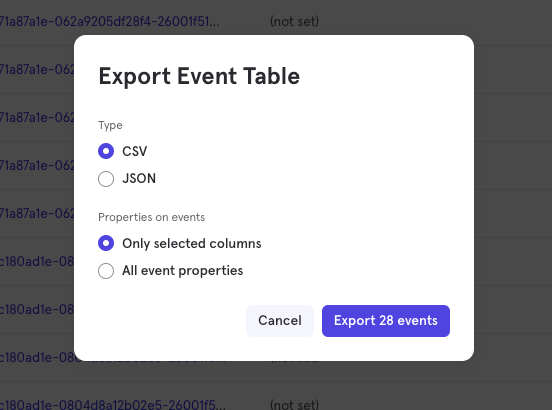
Only the events visible in the Events table at the time of your export will be included in the CSV. Scroll down and click “Load More” to make more events visible.
Exporting Profiles
User Profile Export via API
Profiles and events will always export the canonical distinct ID as shown in the UI.
output_properties=["$last_name", "$email", "Total Spent"]
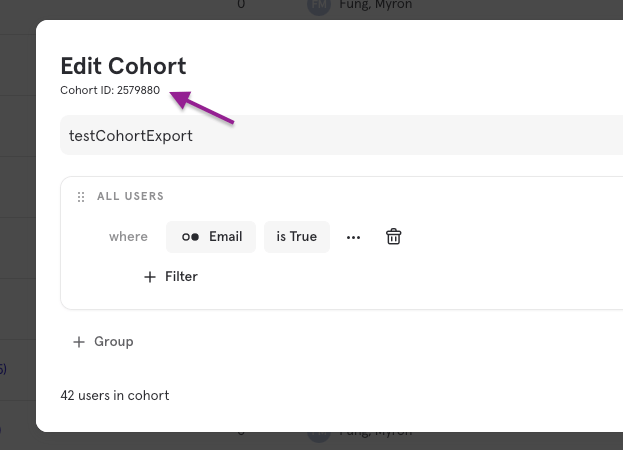
You may export specific cohorts by using the filter_by_cohort parameter. You may find the cohort_id in the UI next to your cohort or by using the cohorts-list API.
Group Profile Export via API
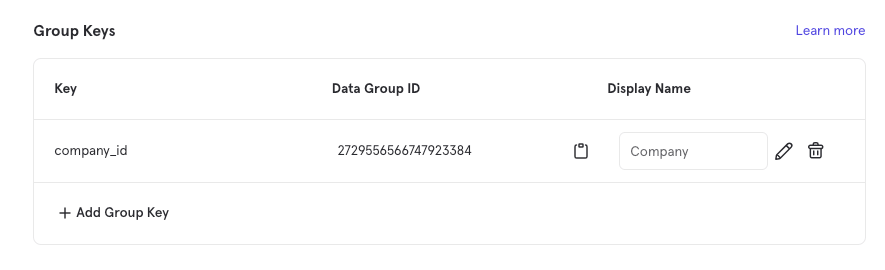
You can also leverage the Engage API to export Group Profiles. To do so, provide thedata_group_id parameter in your Engage API request. You can find the data_group_id for your group keys in your project settings.
CSV User Profile Export
You may export your profiles as a CSV for use in quick analysis by navigating to the Users tab, querying the profiles that you are interested in seeing, then clicking the “Export” button in the top right corner. Only the columns shown in the UI will be exported in the CSV. You may modify the table by clicking the “Edit Columns” button to choose the profile properties to return before your export.CSV Group Profile Export
To export Group Profiles as a CSV, switch the group key to your group of choice by clicking the “Analyze Uniques by” button in the top left of the UI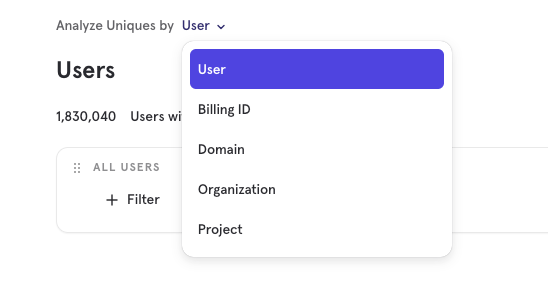
Exporting Reports
Users with a Growth or Enterprise plan can use our Query API to export formatted report data. Users with a Free plan can export reports as CSV, PNG, or PDF from the UI. See our pricing page for more details.